How to Turn a Photo into an AI Video (Step by Step)
SnowArt Team
7/15/2026
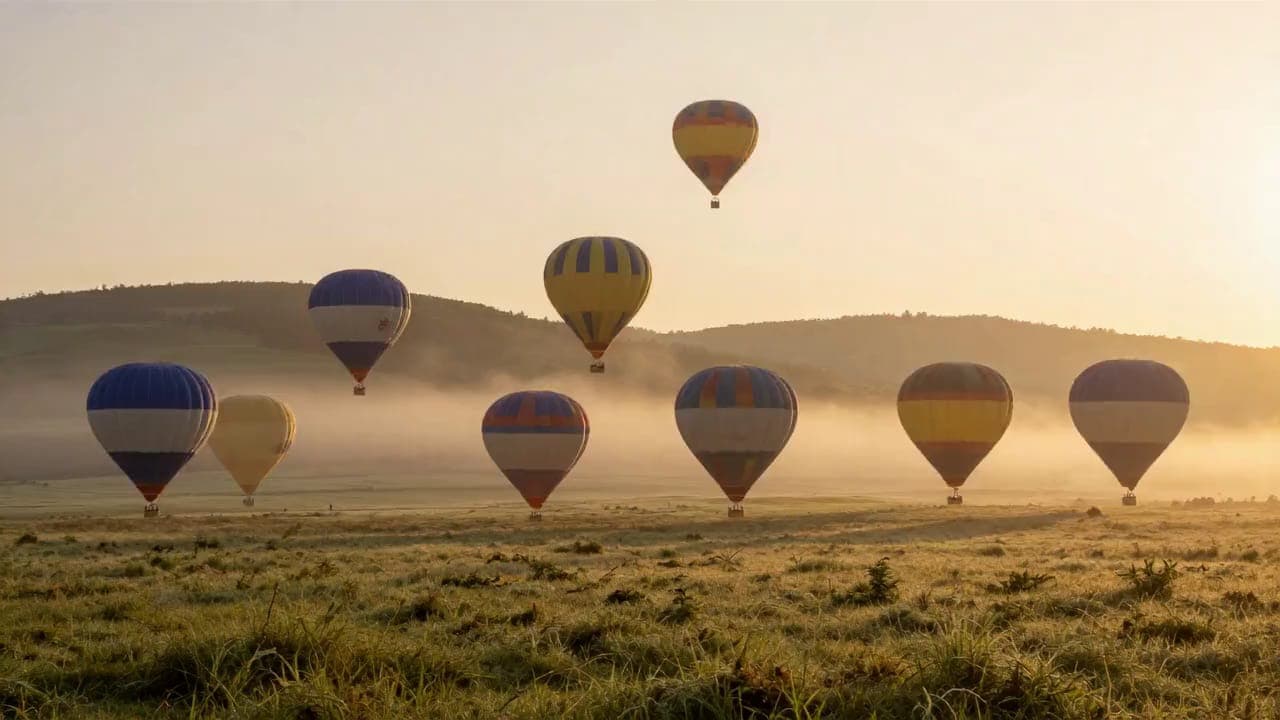
Text-to-video asks the model to invent everything. Image-to-video is easier to control: your photo decides how things look, and your prompt only has to decide how things move. That split is why i2v is the fastest way to get good AI video.
The workflow
1. Pick the right source image
The model animates what it sees, so the image quality caps the video quality. What works well:
- A clear main subject — one person, one product, one creature. Crowded scenes force the model to split attention.
- Room to move — a subject mid-gesture animates more naturally than a stiff frontal pose.
- Clean edges — motion amplifies compression artifacts, so start from the sharpest version you have.
Generated images work as well as photos. A common pipeline: create the perfect frame in the image generator, then animate it.
2. Describe the motion, not the scene
The model already sees the scene — repeating it wastes your prompt. Describe only what should change:
~~"A woman in a red coat standing on a bridge in the rain"~~
"She turns her head toward the camera and smiles; rain intensifies; slow push-in."
Three motion layers worth specifying: subject motion (what the subject does), environment motion (rain, steam, crowds), and camera motion (push-in, orbit, handheld drift).
3. Pick duration and resolution
Start with a short clip at 480p to check that the motion reads correctly — it renders fast and costs the least. Once the movement is right, re-run the same prompt at 720p or higher. Generating your first attempt at maximum quality is the most common way to waste credits.
4. Generate and iterate
Clips render asynchronously and land in your history. If a result fails, your credits for that run are refunded automatically. Iterate the same way you would with images: change one thing per attempt.
Fixing the three common failures
The subject morphs or melts. Usually an overloaded prompt. Cut it to one clear action. Premium models with reference-frame control (like Seedance 2.0) hold identity best.
Everything moves too much. Models err toward drama. Add "subtle motion" or "slow, gentle movement" — explicitly asking for less works.
The camera does something random. State the camera explicitly, even when you want none: "static camera" or "locked shot" prevents surprise pans.
Which model to use
SnowArt Video is the place to start — fast 5-second clips at the lowest credit cost, good for learning what prompts do. When you need longer clips, higher resolution, audio, or first/last-frame control, the premium lineup (Seedance 2.0, Kling 3.0, Veo 3.1) is included with paid plans.
Full details on the image-to-video page, or start from the AI video generator.